

Ask Microsoft 365 Copilot to summarize the project inbox, and it will. Ask it to work that inbox, opening every attachment as it arrives, telling an RFI from an invoice, filing each one in Procore and logging it for the auditors, and you have found the most common of the Microsoft Copilot limitations: it helps a person do a job, but it does not take the job over.
That is by design. Microsoft positions Copilot for individual productivity (Microsoft Learn): one person, in Microsoft 365 apps, drafting, summarizing and searching. A workflow can monitor a shared inbox, move files between systems and log each transfer. A custom AI agent is worth considering when the next action depends on what a document actually says, especially when filenames and templates are unreliable.
This guide shows where the line sits, which Microsoft tool fits each side of it, and what a working agent looks like, based on Microsoft’s documentation and a system we built for a U.S. construction company.
- Microsoft 365 Copilot earns its license on one person’s work: drafting, summaries and search across what that person can already open.
- Four limits appear when work becomes a process: a shared queue, systems outside Microsoft 365, work that starts on an event, and permissions nobody cleaned up.
- Copilot Studio, Microsoft Foundry and a custom build on Azure suit different agents; check each one’s published limits before a pilot scales.
- The usual answer is both: an agent runs the process and files the results, and Copilot helps people find them.
What Microsoft 365 Copilot Does Well
Common uses for Microsoft 365 Copilot include:
- Drafting. A first version of an email, a document or a slide deck from a prompt and from files the person already has.
- Summaries. Long email threads and Teams meetings, condensed into decisions and next steps.
- Finding things. Answers drawn from the mail, chats and files the person can already open. Microsoft states that Copilot “only surfaces organizational data to which individual users have at least view permissions” (Microsoft Learn).
- Shared and delegate mailboxes. A licensed user can now ask Copilot to read, summarize and draft replies in a shared mailbox, or in a delegate mailbox where they have full delegate access (Microsoft Support).
It also runs inside the tenant’s existing permissions and compliance setup, so IT does not have to build a new security model to roll it out.
Where Microsoft Copilot Limitations Show Up in Real Work
The limits appear when someone tries to hand Copilot a job that used to belong to a person or a team. Four Microsoft 365 Copilot limitations come up again and again:
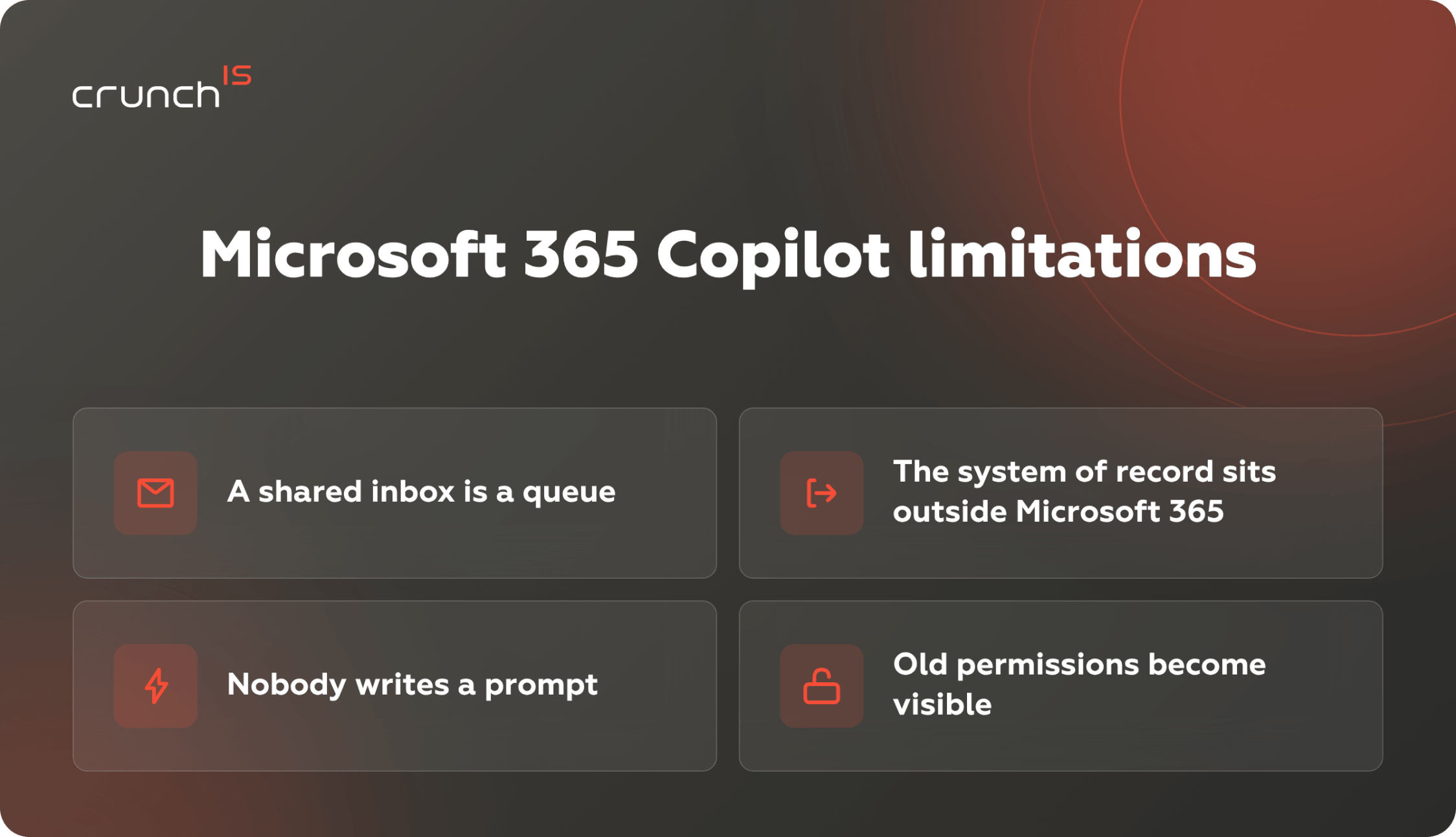
1. A shared inbox is a queue, not a conversation
Copilot can now summarize a shared mailbox when a licensed person asks it to. That is different from working the queue. In a project inbox that receives RFIs, submittals and invoices all day, every attachment still has to be opened, classified, renamed and filed. Copilot helps the person who does that, but it doesn’t take the task off them.
2. The system of record sits outside Microsoft 365
Microsoft 365 Copilot can reference third-party data through Microsoft Graph connectors, if the user has permission to see it (Microsoft Learn). Reading is the easy half. Writing a document into the right Procore folder, creating a record in an ERP, or updating a CRM field means API calls, authentication, field mapping and error handling. We compare the two ways to wire that up in MCP vs API for AI agents.
The same goes for documents Copilot was never meant to read. For a UK IT services company, we built an agent that extracts data from spreadsheets and scanned handwritten documents with Azure AI Document Intelligence and passes it into the client’s existing Java API (case study).
3. Nobody writes a prompt
In Copilot Chat, a person starts the interaction. An automated workflow can start when an email arrives or a file lands in a folder. Microsoft’s Workflows agent lets a user describe an automation in plain language. The resulting workflows are stored in a dedicated Power Platform environment for the tenant.
Take a project inbox that receives PDFs overnight. If each sender uses a known template and the destination follows a fixed rule, a Power Automate flow may be enough. If subcontractors use different templates or submit a change order under the wrong filename, the system needs to interpret the contents before it can route the file. That classification step is where AI can help.
4. Permissions you never cleaned up become visible
Copilot can surface organizational content the user already has permission to view. Microsoft’s own guidance is to use the SharePoint permission models so “the right users or groups have the right access to the right content” (Microsoft Learn). In practice, a folder shared with the whole company years ago can turn up in answers from day one. When building a custom agent, the team can restrict its access to the sources required for the task. In a RAG assistant we built for a UK IT services provider, the assistant answers only from documents the user is cleared to open, and says it has no information otherwise.

Copilot Studio vs Azure AI Foundry vs a Custom Build
Once you have identified a step that calls for an AI agent, there are three Microsoft platform options worth comparing. Microsoft’s Cloud Adoption Framework names them: Copilot Studio (SaaS, low-code), Foundry (PaaS, pro-code) and custom infrastructure. Azure AI Foundry has since been renamed Microsoft Foundry (Microsoft Learn).
The choice is not ideological. Copilot Studio is often the fastest way to prove a use case. Copilot Studio limitations are published, and Microsoft’s guidance is to plan throughput before a pilot goes to full scale, because “the lowest limit in the runtime path determines the user experience” (Microsoft Learn). Here is where each option fits.
When Copilot Studio Is Enough
Copilot Studio fits when the agent answers questions from company content or performs a handful of defined tasks through prebuilt connectors, and when a business team will own it. Before a pilot grows, check the limits that apply to your scenario on Microsoft’s Quotas and limits page. A few come up often:
- An agent using generative orchestration can point to at most 25 SharePoint site URLs.
- Without a Microsoft 365 Copilot license in the same tenant, generative answers can only use SharePoint files under 7 MB.
- Using an Excel file from SharePoint as a knowledge source can produce weak answers to analytical questions. For tasks that require calculations, Copilot Studio also offers a code interpreter that can generate and run Python.
- On the Teams plan included with select Microsoft 365 subscriptions, each user gets 10 sessions every 24 hours across all agents in the tenant.
Message limits apply per Dataverse environment, so every channel and integration that talks to agents in that environment counts toward the same limit (Microsoft Learn). Microsoft can raise them for approved scenarios, but it asks for “measured usage from a pilot phase, not a projection.”
When Microsoft Foundry Fits
Foundry fits when an engineering team needs to choose its own models, write code, or chain several agents. Microsoft describes Foundry workflows as handling “sequential logic, conditional branching, and state management across multiple agents,” and hosted agents as a managed runtime for your own code (Microsoft Learn). Teams with private networking requirements can configure Foundry Agent Service to use an Azure virtual network. Our Azure consulting team can set up that environment. The two platforms also meet in the middle: a Copilot Studio agent can use Foundry models, so a business team keeps the low-code interface while engineers manage the model.
When a Custom Build on Azure Fits
A custom build on plain Azure services fits when the agent is really a pipeline. It must take every item from a queue, cope with a burst of emails on a busy morning, retry when a downstream API is down, and leave a record for every step. You design and run more of it yourself, but you choose every component in the runtime path and can see the limits of each. The case below is that kind of build. And when the goal is an assistant tailored to one role or product, it may be a custom copilot rather than an agent at all.
What a Custom Agent Looks Like in Practice
A U.S. construction company with more than 70 years in the business ran document intake by hand. Project teams downloaded attachments from project inboxes, decided whether each one was an RFI, a submittal or a change order, and uploaded it to Procore and SharePoint. Files arrived mislabeled or incomplete, versions got mixed up, and approvals slipped.
We built an Email AI Agent that does the intake on its own. A team of four delivered it in 3.5 months. For every new email, it runs the same six steps:
- Inbox monitoring. It watches a dedicated project inbox for new attachments.
- Attachment retrieval. The system downloads each PDF attachment to Azure Blob Storage.
- Malware scanning. Microsoft Defender for Storage scans the uploaded file before document processing.
- Extraction and classification. The system extracts key fields and uses the document’s contents to identify an RFI, submittal, change order or other document type.
- Placement in Procore. It uploads the file to the right location by document type and subcontractor.
- Logging. It adds a row to a tracking spreadsheet, also stored in Procore, with the project ID, document type, sender, title, company and document number.
It runs on Azure: Azure Functions for orchestration, Azure Container Apps for processing, Blob Storage and Queue Storage for file handling, Entra ID for identity, Key Vault for secrets and Azure Monitor for observability. It works with the mailbox, Procore and SharePoint through Microsoft Graph, the Procore API and the SharePoint API.
Why the Architecture Looks Like This
Each component answers a question someone in IT or audit will ask. Azure Queue Storage buffers incoming work so a burst of attachments can be processed as capacity becomes available. Defender for Storage scans uploaded attachments for malware. Key Vault keeps the credentials for Procore and SharePoint out of the code, Entra ID handles identity, and Azure Monitor shows what ran, when, and with what result. The tracking spreadsheet is the business-facing half of the same idea: a project manager can see every document the agent handled without opening Azure.
What Changed for the Client
For this client, document ingestion became 70–80% faster, and project managers and operations staff got back approximately 35 hours a month of manual administrative work. Every document now enters Procore with the same metadata and a traceable path, which gives the team an audit trail they did not have before.
None of those six steps is a chat. That is the difference between a copilot and an agent, and it is the work our AI agent development team does. For a wider look at how agents plan and act, see AI agents: how they work.
Five Questions That Decide It
Use these five questions to assess how much of the process a person can handle with Copilot and which steps are worth automating.
For the steps you want to automate, check how the next action is chosen. A workflow may be enough when a project code determines where a file goes. A custom AI agent is worth considering when the system must read an unfamiliar document, identify its type and use that information to decide where to file it.
How to Scope a First Agent
A first agent should be small enough to ship in months, not quarters, and important enough that people notice when it works. These steps keep it there.
- Pick one process with one owner. One inbox, one document type, one team. “Document intake for one project inbox” is a scope; “automate operations” is not.
- Count the volume. How many emails, files or requests arrive a day, and how many minutes each takes by hand. That number is the business case and the baseline you will measure against.
- Map every system it touches. For each one, note whether the agent reads, writes or both, and through which API. A system with no usable API is a separate piece of work, as we explain in MCP vs API for AI agents.
- Decide what the log must show. Who will read it, an auditor, a project manager or IT, decides what each entry records.
- Start with suggestions. In the first weeks, the agent proposes and a person confirms. Steps move to full automation one at a time, once their error rate is low enough.
- Agree the measure before go-live. Processing time, hours saved or errors caught. Measure it before the agent starts, so the result is a comparison, not an estimate.
A scope like this also answers the question IT will ask first: what exactly the agent is allowed to touch.
Copilot and a Custom Agent Together
Document intake is one example of how a custom agent and Microsoft 365 Copilot can work together. The agent works the queue: it reads every incoming document, files it in SharePoint or the system of record, and logs what it did. Copilot then works for the people: if the agent files documents in SharePoint with consistent names and metadata, a project manager can ask Copilot to find the latest submittal from a given subcontractor in the SharePoint content they can access. A well-run agent makes Copilot more useful, because it gives Copilot clean, well-labeled content to find.
The security model holds together too. The agent can run under its own Entra ID identity, with access limited to what its task needs. People keep seeing only what their own permissions allow, in Copilot and everywhere else.
For Microsoft partners. A customer who hits one of these limits is not dropping Copilot. They are asking for the next project on top of it: an agent inside the Microsoft 365 tenant they already run, using the same identity setup and, where they have one, the same Azure subscription. When a customer asks for agents inside Microsoft 365, you can say yes and deliver, under whichever engagement model you are comfortable with. The licenses stay, and the relationship moves past the rollout.
How Crunch-IS Builds AI Agents for Microsoft 365
Our AI agent development work starts where this article does: with the process, not the platform. We look at the volume, the systems the agent must write to and the log someone will need, and only then recommend Copilot Studio, Microsoft Foundry or a custom build on Azure.
The agents we build run under their own scoped identity, respect each person’s access rights and log every action. They begin by proposing changes for a person to approve, and a step runs on its own only once its error rate is low enough.
The projects mentioned in this article show the results in numbers. The Email AI Agent made document ingestion 70–80% faster for a U.S. construction company. For a UK IT services provider, a search assistant across SharePoint, Salesforce and S3 brought 60% faster work with company documents. For another UK IT services company, an extraction agent for scanned handwritten documents made document processing 96% faster. Where the need is an assistant built around one role rather than a process, our AI copilot development team builds that instead, and our Azure consulting team sets up the environment underneath.

Conclusion
Microsoft 365 Copilot is a good fit when someone needs to draft a response, summarize a discussion or find information they can act on. When that work becomes a recurring team process, look at what happens after Copilot provides the answer. Which decisions does someone still have to make, and what do they do next?
A workflow may be enough when those steps follow clear rules. A custom AI agent is worth considering when the team repeatedly has to interpret what comes in and use that judgment to take action across systems. The two can work together. An agent can handle routine intake and file the results, while people use Copilot to find what they need and decide how to handle exceptions.